
1 min read · Updated 3 Jul 2026

How do I add a Contact?

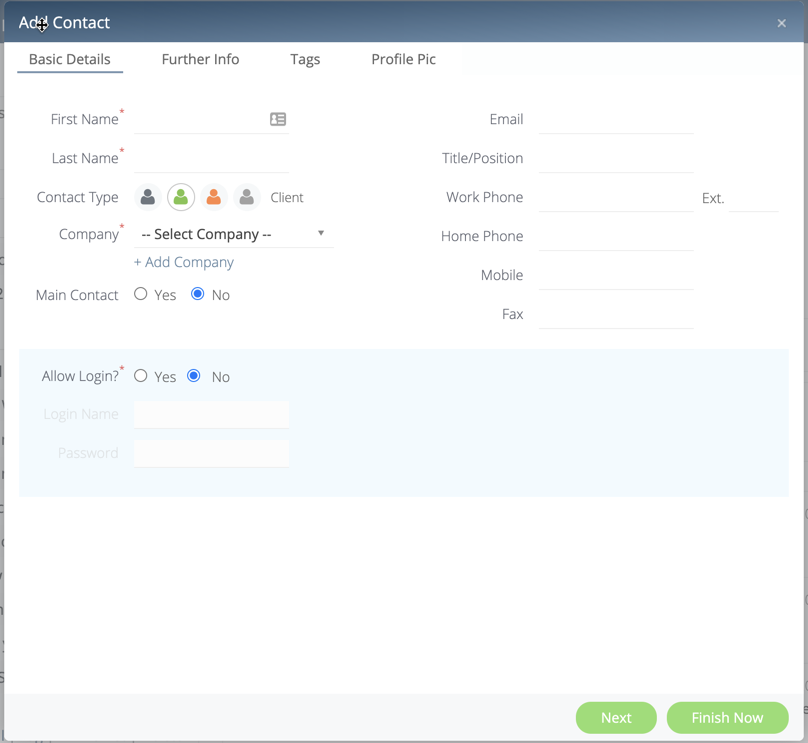
Follow these steps to add a new Contact:

  1. Click 'Contacts' in the upper navigation

  2. Click the Green + icon on the top left corner

  3. Click 'Contact'

  4. Select the Contact type (Grey icon for Staff, Green icon for Clients, Orange icon for Contractors)

  5. Enter the Contact details such as First Name, Last Name, Contact Type, Company and whether you would like to allow them a login

  6. Click 'Done' or 'Finish Now' to add the Contact
If you have any further questions, feel free to contact us!

Step-by-Step Guides

Projects — Bulk Add Contacts to Projects

  1. 1
    Click Projects in the top navigation bar
  2. 2
    Check the checkboxes on the project rows you want to update
  3. 3
    Click the Contacts button in the bulk actions toolbar
  4. 4
    Select Add mode
  5. 5
    Search for and select the contacts to add
  6. 6
    Click Apply — the selected contacts are linked to all chosen projects

Was this article helpful?